Saving, bids and the board
Under Saved you keep deadlines in view, under Bids your team works on the tenders you are interested in. Bids are always submitted through the route the tender names.
 Open the picture at full size (new tab)
How it works
- 1
Save
With “Save” on a card or on a tender page, the tender goes to Saved. For saved tenders that are still open, a reminder comes 7, 2 and 1 days before the submission deadline. A notification and an e-mail also remind you 3 and 1 days before of the deadline for questions and of dates the tender names as mandatory, such as a site visit.
- 2
Prepare a bid
On a tender page choose “Prepare bid”, under Saved “Add to bids”. The tender is then listed under Bids, with deadline, submission route and checkpoints.
- 3
Add your own tender
An invitation, a request from a general contractor or a job outside simap goes under Bids with “Add your own tender”: a title and, as far as you know them, contracting authority, submission deadline, place, canton and source. The entry works like any bid, with the board, deadline reminders, tasks, proofs and the calendar subscription. Only your team sees it.
- 4
Four steps to submission
The page of a bid guides you through Documents, Decide, Prepare and Submit: where to get the documents, the checkpoints and criteria from the publication, company details and references to copy, an envelope cover sheet and the submission route. With Pro, TEXFY pre-fills the PDF and Word forms among the uploaded documents with your company details under “Contracting authority's forms”: you check every proposal and download a copy, the original stays unchanged. Plus the list of the places that ask for a signature and the signature package, a PDF with exactly those pages to print, sign and scan. A person with signing authority has to sign; TEXFY never fills in a signature and submits nothing.
- 5
Status on the board
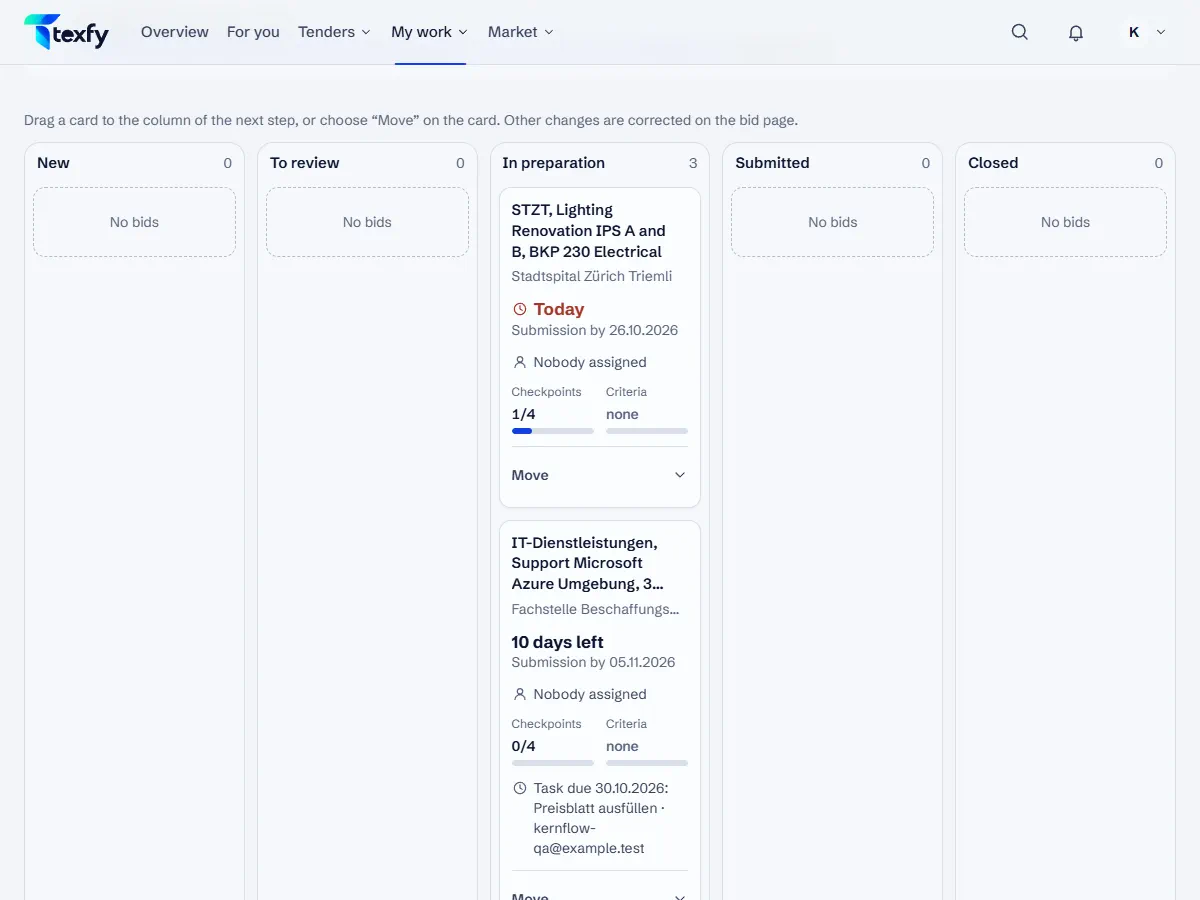
The board shows the bids in the columns New, To review, In preparation, Submitted and Closed. Drag a card into the column of the next step or choose “Move” on the card. Other changes you correct on the page of the bid.
- 6
Working as a team
Each bid can be assigned to one person, who gets a notification and an e-mail with the deadline and a link. Add tasks with due dates, an internal note and, if you like, your own bid amount. The activity shows statuses, tasks, comments and criteria.
- 7
My tasks
You create tasks in a bid under “Team tasks”, with a date or with “Or days before the deadline”: the due date then moves when the deadline changes. “My tasks” under My work shows your open tasks from all bids, the next one due first; “Done” ticks one off right there. Done tasks show who did them and when.
- 8
Closing and result
Under “Close with the result” on the page of the bid you choose Won, Not won or Cancelled after submitting, while preparing also “Declined or withdrawn”, and if you like a reason and a note; both then show as your comment on the bid. If simap publishes an award, the bid takes over the result or asks you to confirm it; after an abandonment or revocation it sets the status itself. You can correct the status at any time, and the correction shows in the status history.
- 9
Results
The “Results” view under Bids shows your win rate, the outcomes and the value of the bids won, by year and service; your own tenders have a row of their own. The rate divides the bids won by the bids won and not won; the value comes from your own bid amount.
Good to know
- The person assigned to a bid also gets the deadline reminders by e-mail 7, 2 and 1 days before.
- The owner and admins can remove a bid from the list. Its status, checkpoints and note are deleted.
Questions about this
Does TEXFY submit my bid?
No. Bids are submitted through the route the tender names, often online on simap.ch. “Mark as submitted” only records that you have submitted.