Calendar subscription
The calendar subscription puts submission deadlines, question deadlines and other dates such as site visits into your calendar and keeps them up to date.
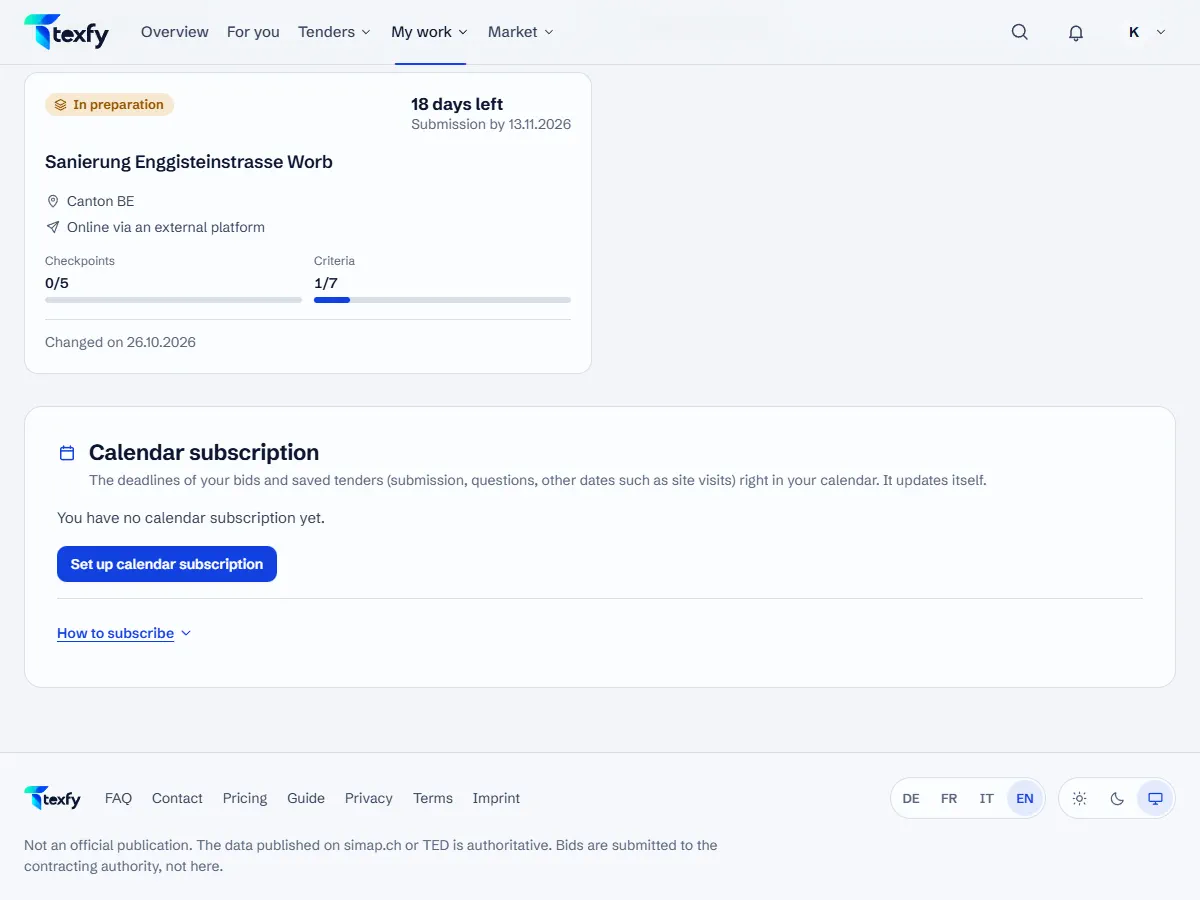 Open the picture at full size (new tab)
How it works
- 1
Set up the subscription
Open Bids and choose “Set up calendar subscription” under Calendar subscription. You get a personal address.
- 2
Copy the address
Copy the address straight away: it is shown only once. Anyone who knows it sees your deadlines, so do not pass it on.
- 3
Subscribe in your calendar
Outlook: Add calendar › Subscribe from web. Google Calendar on a computer: next to “Other calendars” click + › From URL. Apple Calendar: on a Mac File › New Calendar Subscription, on an iPhone Settings › Calendar › Accounts › Add Account › Other. Or “Open in calendar app”.
- 4
Renew or end
“Create a new address” replaces the old one, “End calendar subscription” stops it. Dates already taken over stay in the calendar until you remove the subscription there.
Good to know
- The subscription is yours. If you leave the company, it ends.
- Google Calendar only fetches changes every few hours.
- For a single date, every bid page offers “Deadline to calendar (.ics)”.
Questions about this
Which dates go into the calendar?
Submission deadlines, question deadlines and other dates according to the publication, for your bids and saved tenders. The original tender prevails.