Sign-in and security
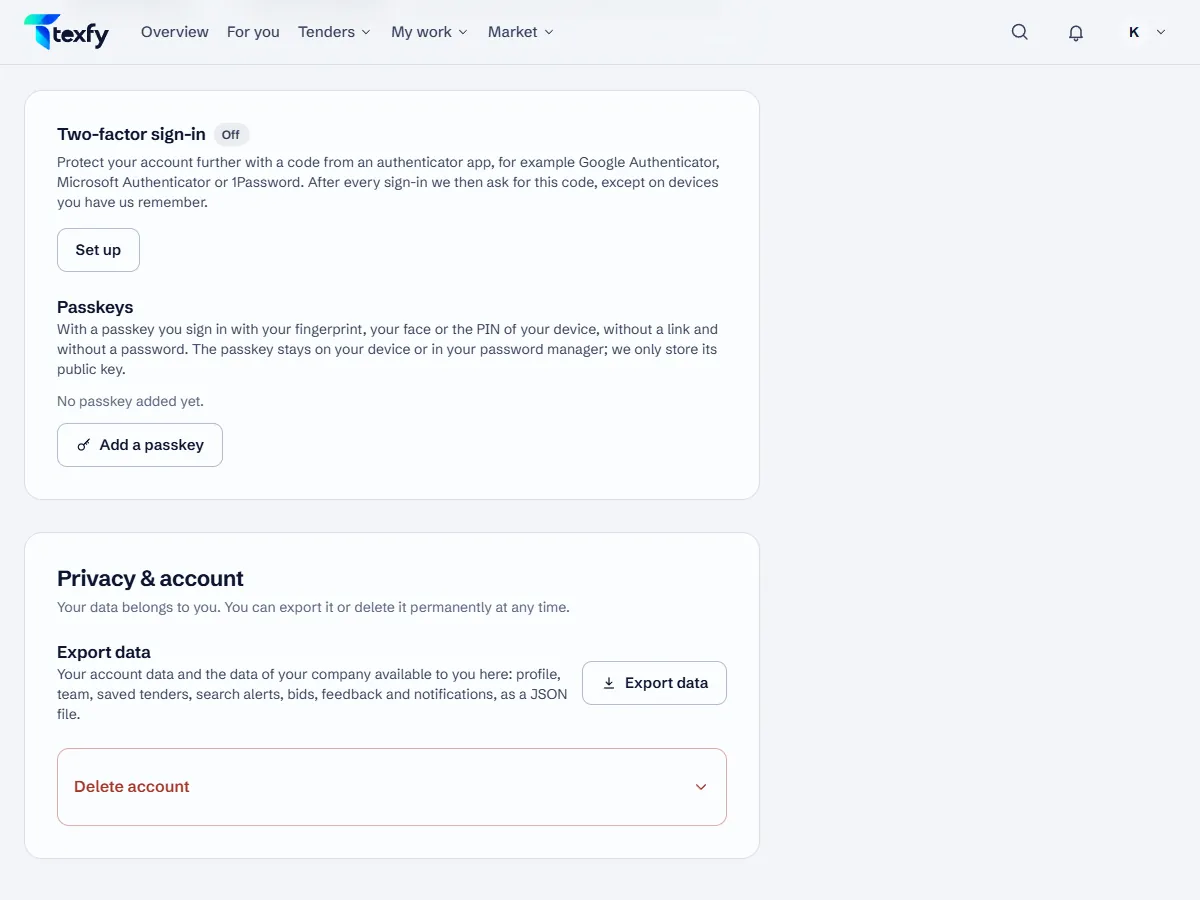
Under Profile › Account & security you protect your sign-in further: with a code from an authenticator app, backup codes for emergencies and passkeys. All of it is optional.
 Open the picture at full size (new tab)
How it works
- 1
Set up two-factor sign-in
Choose “Set up” under “Two-factor sign-in”. If your account has a password, you confirm with it; otherwise you need a sign-in within the last 10 minutes. Scan the QR code with an authenticator app such as Google Authenticator, Microsoft Authenticator or 1Password, enter the 6-digit code and choose “Confirm and turn on”.
- 2
Save your backup codes
Then the app shows 10 backup codes, this one time only. Each is good for one sign-in without your phone. Save them with “Download as text file” or “Copy codes”, for example in a password manager, and choose “I have saved the codes”. Later, “New backup codes” replaces all earlier ones.
- 3
Sign in with the code
After the link or the password, “Confirm sign-in” asks for the code from the app; without your phone choose “Use a backup code”. With “Remember this device for 30 days” the sign-in no longer asks for the code on your own device for that long.
- 4
Add passkeys
Under Passkeys, “Add a passkey” adds a passkey of your device or password manager; this needs a sign-in within the last 10 minutes. After that you sign in with “Sign in with a passkey” using your fingerprint, your face or a PIN, without a link, a password or a code from the app. “Rename” and “Remove” manage each passkey.
- 5
Signed-in devices
Under Profile › Account & security you see where you are signed in. You sign out an unknown device on its own, all others at once, or everywhere. If your account signs in on a new device, an e-mail arrives; if it was not you, “This wasn't me” leads here, and “Sign out everywhere” signs you out on all devices.
- 6
Turn off
“Turn off” asks for your password, if your account has one, and a current code from the app or a backup code. After that, the link or the password is enough to sign in again.
Good to know
- Keep the backup codes apart from your phone, for example printed or in a password manager.
- No access to the app and no backup codes left? Write to us through the Contact page.
Questions about this
Do I have to turn on two-factor sign-in?
No, it is optional. Once it is on, the link by e-mail alone no longer opens your account.
What do you store of a passkey?
Only its public key. The passkey itself stays on your device or in your password manager.